`
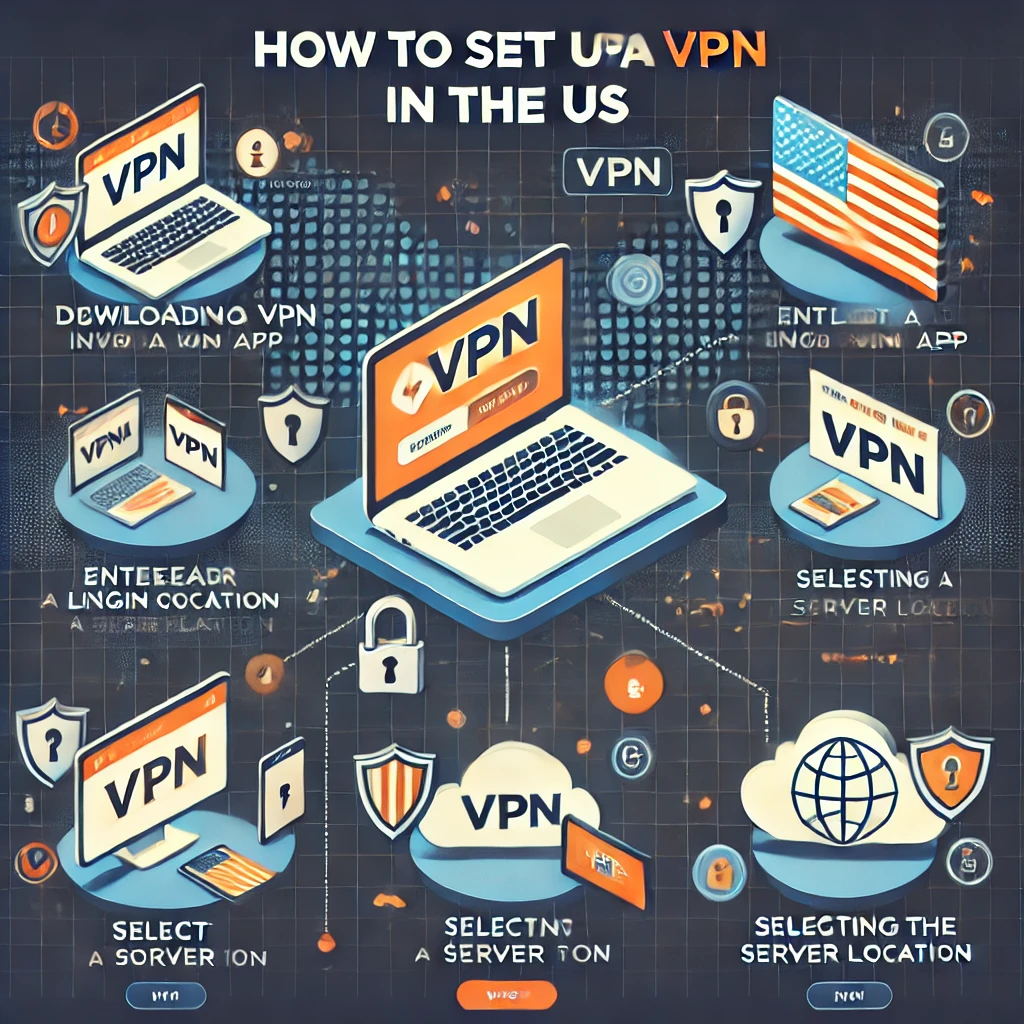
How to Set Up a VPN in the US
A Virtual Private Network (VPN) is a powerful tool that enhances your online privacy, security, and access to restricted content. Whether you want to protect your personal information on public Wi-Fi, browse anonymously, or unlock geo-restricted streaming services, setting up a VPN is a straightforward process. Here’s a step-by-step guide on how to set up a VPN in the US.
1. Choose the Right VPN Service
The first step is selecting a VPN provider that suits your needs. There are many VPN services available, each offering different features, pricing, and server locations. Consider the following factors when choosing a VPN:
- Speed and Performance: Look for VPNs with fast servers to avoid lag during browsing or streaming.
- Security Features: Choose a service with strong encryption, a no-logs policy, and additional features like a kill switch.
- Global Servers: If you want to access content from specific countries, make sure the VPN has servers in those locations.
- Cost: Some VPNs are free, but premium VPNs (like NordVPN, ExpressVPN, or Surfshark) offer better speed, security, and features.
2. Sign Up for a VPN Account
Once you’ve chosen a VPN provider, visit their official website and sign up for an account. Many VPN services offer monthly or annual subscription plans, with discounts for longer commitments.
- Pro Tip: Most premium VPNs offer a free trial or a money-back guarantee, allowing you to test their service risk-free.
3. Download and Install the VPN App
After signing up, download the VPN application for your device. Most VPN providers support a variety of platforms, including:
- Desktop/Laptop: Windows, macOS, or Linux.
- Mobile Devices: iOS or Android.
- Routers and Smart TVs: Some VPNs support direct setup on routers and smart devices.
Install the app following the instructions provided by the VPN service.
4. Log In to the VPN App
Once the app is installed, open it and log in using the account credentials you created during sign-up. This step is essential to access the full features of the VPN.
5. Select a Server Location
After logging in, you’ll typically see a list of server locations. Select a server based on your needs:
- For Privacy: Choose a nearby server for the best speed and encryption.
- For Accessing Geo-Restricted Content: Select a server in the country where the content is available. For example, use a US server to access American Netflix or a UK server to watch BBC iPlayer.
Many VPNs also offer an automatic connection feature, which chooses the fastest server for you.
6. Connect to the VPN
Click the «Connect» button to establish a secure connection to the server you’ve selected. Once connected, your internet traffic will be encrypted, and your IP address will be replaced with the server’s IP address. This ensures your online activity is private and secure.
7. Adjust Settings (Optional)
Most VPN apps have additional settings you can customize based on your preferences:
- Kill Switch: Ensures your internet connection is blocked if the VPN disconnects unexpectedly, protecting your privacy.
- Split Tunneling: Allows you to choose which apps or websites use the VPN and which don’t.
- Auto-Connect: Configures the VPN to automatically activate when you start your device or connect to an unsecured network.
8. Test Your VPN Connection
To confirm that your VPN is working correctly, visit a website like “What Is My IP Address” to check your IP. If the IP address matches the server location you selected, your VPN is successfully connected.
9. Use the VPN Safely
Now that your VPN is set up, you can browse, stream, and download with added privacy and security. Make sure to connect to your VPN whenever you use public Wi-Fi or want to access geo-restricted content.
Conclusion
Setting up a VPN in the US is a simple process that can greatly improve your online experience. By choosing a reliable VPN service and following these steps, you can enjoy a safer and more private internet connection.
For more tips on enhancing your digital security, check out helpful guides to protect yourself online and unlock the full potential of your devices.
Добавить комментарий